
I recently installed Bazzite on my desktop to use it for gaming and I’m liking it, so when the moment came to want to use it for development I figured I’d try to get Unity to work.
Bazzite has an immutable filesystem, so the official installation wouldn’t work out of the box, and I had had issues with the flatpak in the past so I searched around and found that Bazzite comes with Distrobox, a tool that lets you emulate different distros and install software on them.
I used DistroShelf to create a new box using fedora-toolbox as a base, then I followed the instructions in Unity’s page for Red Hat Enterprise Linux. Click on the terminal button in the status section and follow the instructions on that terminal.
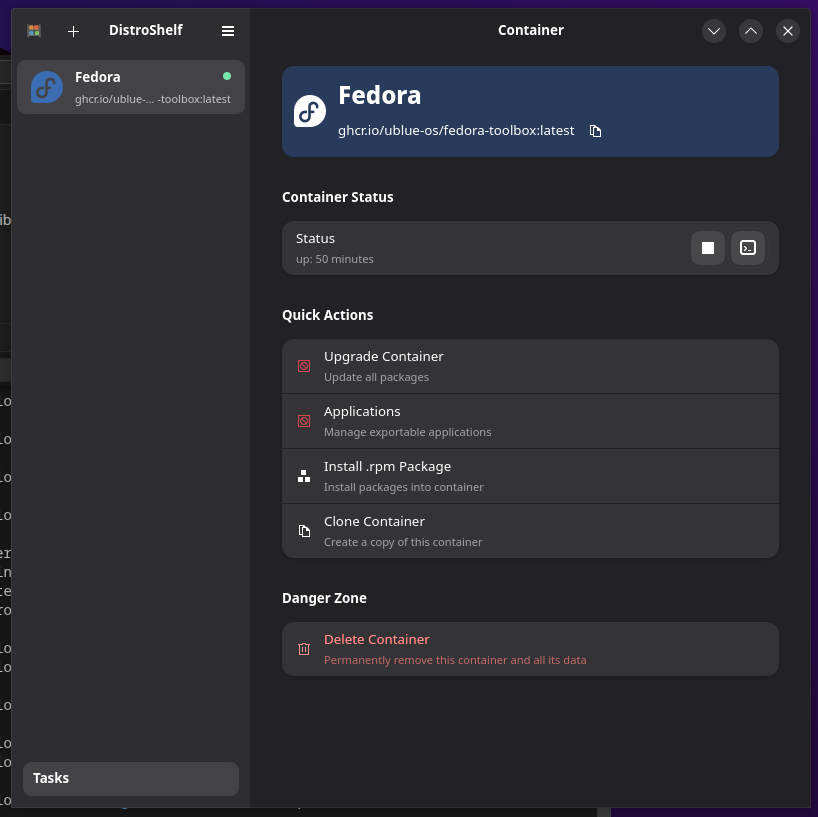
Next is installing VSCodium, I followed the instructions for fedora in the official page. You can install VSCode instead if you prefer, in that case follow the instructions for fedora in its page and ignore the following step.
In order for Unity to recognize VSCodium, you need to create a symlink (unity will just check if there is a file called code). Run the following on the terminal:
sudo ln -s /usr/bin/codium /usr/bin/codeThat will trick unity into running VSCodium instead of VSCode.
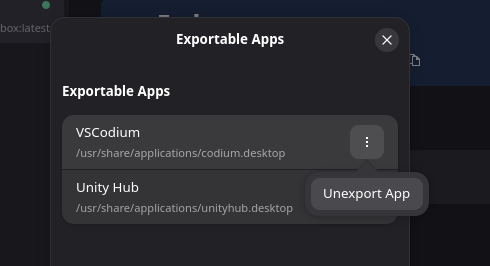
Next is adding Unity Hub to the start menu, on DistroShelf click on Applications, on the popup click on the three dots and select Export App. You can also do that for VSCodium.

Now run Unity Hub and login, it will open your browser to complete the login process, in the end you will get a message telling you that the login process should end automatically but nothing happens, there is a link telling you to click it if it’s not working, to finish the process right click on the link and copy it, then go back to the DistroBox terminal and run:
(This step might not be necessary anymore)
unityhub "paste the link here"Replace "paste the link here" with the link. That should open unity hub and end the login process.
After that, you can open a project, select visual studio code on external tools and everything should be working as usual.


Leave a Reply